
The Prompts page shows every question GetMint asks AI assistants on your behalf, grouped by topic, so you can confirm they match what your customers actually ask. This page is for reviewing and organizing prompts with tags — it does not generate answers itself. The visibility, competition, and sentiment results those prompts produce live on their own pages.
What do you need before you start?
- A domain set up in GetMint.
- At least one topic created for that domain.
Step 1: Open the Prompts page
Select your domain, then open Prompts to see everything GetMint currently tracks. The prompts are split across four tabs at the top — Visibility, Competition, Sentiment, and Alignment — each holding the questions used for that type of analysis.
The screen below shows the Visibility tab open, with prompts grouped under each topic and a tags column on the right. Look at the topic header, the prompt count, and the numbered question rows.
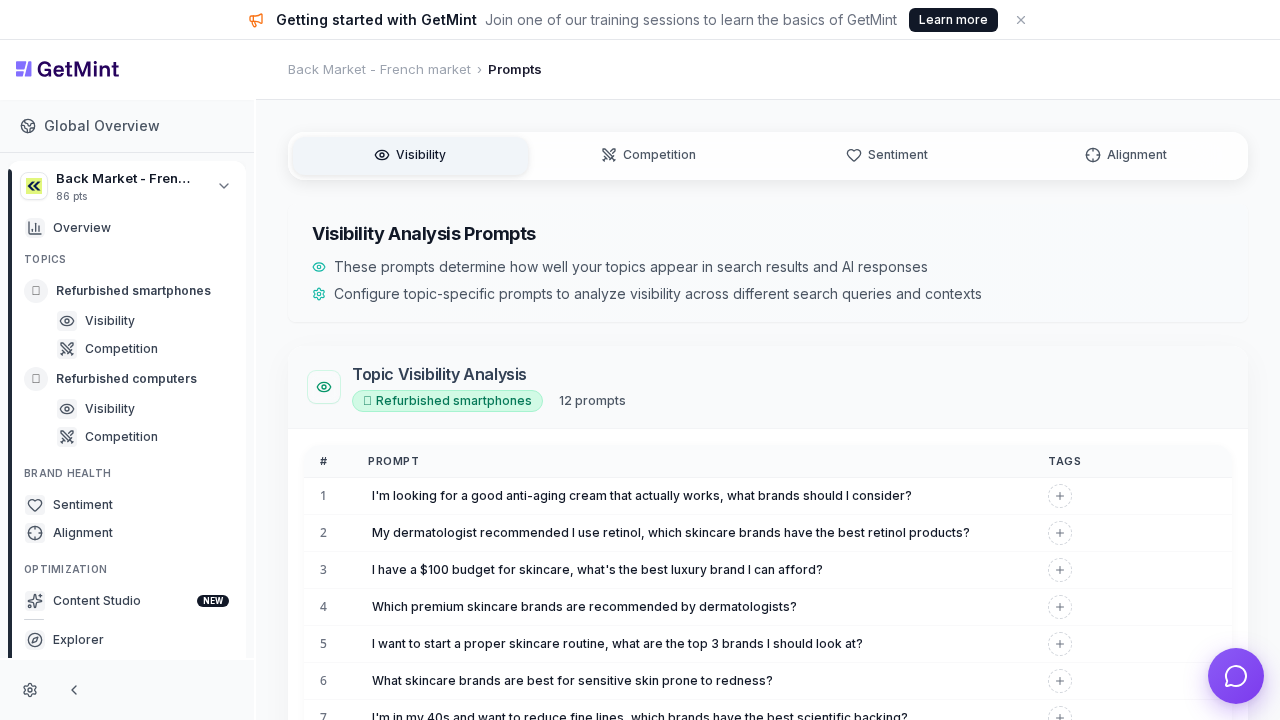
The Prompts page on the Visibility tab, showing two topics with 12 prompts each and an empty Tags column.
Step 2: Review prompts by topic
Each topic carries its own set of prompts. In the example, Refurbished smartphones holds 12 prompts and Refurbished computers holds 12, each listed with a number and the full question text.
Read each row as a real query a customer might type into an AI assistant. The prompt count next to the topic name tells you how many questions GetMint tracks for that topic.
📌 Note: The two banners under the tab title explain that these prompts determine how well your topics appear in AI responses, and that they are configured per topic.
Step 3: Judge whether the prompts match real questions
Compare each prompt against the way your customers actually phrase things to AI assistants. Strong prompts read like genuine buyer questions — budgets, situations, comparisons — not keyword lists.
Use these checks as you scan the list:
| Check | What to look for |
|---|---|
| Relevance | The question fits the topic and your market. |
| Realism | It reads like something a person would type, not a search phrase. |
| Coverage | The set spans the different ways buyers ask about the topic. |
💡 Tip: If a prompt does not sound like your customers, note it for revision so the analysis reflects real demand.
Step 4: Organize prompts with tags
Tags let you label and prioritize prompts inside each topic. Use the Tags column on the right of every prompt row to mark what matters most — for example, high-intent questions, competitor comparisons, or seasonal queries.
In the example the Tags column is empty, so every prompt is still unlabeled. Consistent tags make it easier to focus on the prompts that drive the most important AI conversations for your brand.
FAQ
Why do I see the same prompts under different tabs? Each tab — Visibility, Competition, Sentiment, Alignment — tracks prompts for its own type of analysis. Reviewing them separately lets you confirm each angle is covered.
What does the prompt count next to a topic mean? It is the number of questions GetMint tracks for that topic on the current tab, such as 12 prompts for Refurbished smartphones.
Do tags change what GetMint tracks? No. Tags organize and prioritize prompts for your own review; they do not add or remove questions from tracking.
Key takeaways
- The Prompts page is your single view of every question GetMint tracks, grouped by topic across four analysis tabs.
- Each topic has its own prompt set with a visible count, so you always know how much is being monitored.
- Review prompts as real customer questions, checking relevance, realism, and coverage.
- Tags organize and prioritize prompts without changing what GetMint tracks.